We remain fully operational. Our teams are working around the clock to ensure your deliveries continue safely.

DOWNLOAD THE APP


Customer Services
Copyright © 2025 Desertcart Holdings Limited
DOWNLOAD THE APP


🌍 Stay connected, secure, and in control—wherever your hustle takes you!
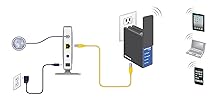
The NETGEAR Trek N300 Travel Router (PR2000-100NAS) is a compact, versatile device designed for professionals on the go. It creates a secure private WiFi network from any Ethernet or public hotspot, extends existing WiFi coverage, and bridges wired devices wirelessly. With a high-gain flipout antenna and multiple power options—including USB and power bank compatibility—this router ensures reliable connectivity at home, in hotels, or cafes. The NETGEAR Genie app offers easy network management, making it an essential travel companion for seamless, secure internet access.


| ASIN | B00HQ883T4 |
| Best Sellers Rank | #51,967 in Computers & Accessories ( See Top 100 in Computers & Accessories ) #1,304 in Computer Routers |
| Brand | NETGEAR |
| Color | white |
| Customer Reviews | 3.6 3.6 out of 5 stars (677) |
| Date First Available | January 6, 2014 |
| Is Discontinued By Manufacturer | No |
| Item Dimensions LxWxH | 9.26 x 6.42 x 2.17 inches |
| Item Weight | 12.3 ounces |
| Item model number | PR2000-100NAS |
| Manufacturer | Netgear Inc |
| Product Dimensions | 9.26 x 6.42 x 2.17 inches |
| Series | PR2000 |
| Voltage | 100240 Volts |
| Wireless Type | 2.4 GHz Radio Frequency |
S**E
A Nice Portable Wireless/Wired Router
I was looking for a network device to use when I access a public wifi at my local coffee house or when I travel. I wanted to keep my laptop/personal devices protected while accessing the Internet. This Netgear Trek device works as a router connecting to a wifi hotspot and providing firewall protection. It also works to extend the range of an existing wifi network (e.g. home) as well as a bridge for ethernet-enabled devices (e.g. TVs, Blu-ray players, etc). The device: - Power: can be plugged directly into a physical power outlet or can be plugged into a USB port (laptop or computer) - Top switch: for Wired, Power Off, or Wireless - Bottom connections: Reset, Internet/LAN, LAN, USB - Front: swing the front flat panel (antenna) clockwise to show the display panel status lights (Power, Internet, WiFi, USB). The flat panel antenna can move/swing to the left with stops at 90, 180, and 270 degrees. - Back: Fold away power connector (nice!), micro USB connection, device login information (user name/password), S/N, MAC, SSID, and Network Key (password) for the device - Size: the device is about 3-1/2"x3-1/2"x1-1/4" This router is easy to setup. I did my initial test setup at home using my Mac laptop: - I connected the NetGear device via the included USB cable to my laptop (for power) - I clicked on my Wifi icon and waited for the NetGear's SSID device to appear on my list and selected it - My web browser opened and I clicked on an existing wifi connection for the NetGear to connect to - A "Join NetGear"/NetGear Genie screen appeared and gave a countdown status while checking setup and making a connection to the existing wifi - Once the connection is made, the first three lights (Power, Internet, WiFi) displayed constant green - My web browser changed a "Congratulation's screen" to notify that a connection was made - From there, you will see the NetGear Trek Features where you can access the NetGear Genie, access/configure for the USB device connected to the Trek, and one other configuration area I can not remember at this time - I did go through the NetGear Genie and made the change to set the SSID not to broadcast and also to change the device Admin password I was able to connect my iPad, iPhone and Kindle Fire HD to my new network. There's an app that can be downloaded called NetGear Genie that can be used on these devices. The application can access Wireless settings, Network map, Traffic meter, Guest access, Parental controls, and My Media (for devices connected via USB to the NetGear Trek). This app is great if you need to check who is connected to your network and if you need to make quick/simple wireless changes. The settings are not as extensive as what you would see while access the NetGear Trek through a web browser on a laptop. The next test was at my local coffee shop. Again setup was easy, similar to what I went through at home. You can create Profiles (e.g. Coffee Shop, Home, Hotel, Work) for different connections you might have. After you setup two profiles, the NetGear Genie will show a screen where you can select from which profile to connect to. This Trek works great out of the box. Easy to setup. Enjoy the small size and portability of this device. I recommend this product.
P**L
Wouldn't work with more than one WiFi device
I've used a lot of travel routers and Ethernet gear in general, and I was surprised that I simply couldn't get this device to work with more than one WiFi laptop. I bought it as a "deal of the day", but didn't have any immediate travel needs, so I didn't get around to testing it until the return period was almost over. It looked quite good at first... I tested it with a laptop running Win7 using both wired Ethernet and WiFi to connect to the Trek, and connecting the Trek to the Internet using both a wired connection and a WiFi connection ("both" meaning in separate tests). No problems. Trivial setup. It's nice that someone finally dropped all the network-speak and just let you select how you're connecting to the Internet: wired or WiFi. I've been suggesting this for years. The rest of the setup could similarly be simplified into plain English if anyone would bother. But... then I brought in a second laptop running Win7, and found I could never get both connected to the Internet at the same time through the Trek, unless one was connected to the Trek wired and the other connected to the Trek by WiFi. (The source I connected the Trek to for an Internet connection was assigning the usual 192.168.1.x IP addresses, subnet mask 255.255.255.0. The Trek assigned 192.168.168.3 to the wired laptop and 192.168.168.2 to the WiFi laptop.) After running many tests I noticed that every time either laptop connected via WiFi the Trek assigned it (by DHCP) the IP address 192.168.168.2. Connect the first laptop, it gets 192.168.168.2, connect the second laptop, it also gets 192.168.168.2 and the first laptop stops working. This is completely incorrect... no two devices should be assigned the same IP address. Worse yet, careful testing revealed the following. First I set the Trek up to connect to the Internet via a local WiFi hotspot (using a laptop's browser to select the hotspot and enter its password). Then I can connect the first laptop to the Trek via WiFi, using the SSID and password printed on the Trek. The first laptop can then access the Internet with no problems. Then if I just tell the second laptop to connect to the Trek via Wifi, which causes a popup window to appear on the second laptop asking for the password, the WiFi connection on the FIRST laptop immediately stops working completely. And that's WITHOUT typing in any password on the second laptop. I tried this several times (trying things like rebooting or power-cycling the Trek and/or the laptops between tests) and always got exactly that same result. So not only could I not get the Trek to work with two WiFi connected laptops, anybody within range could break the one WiFi connection I could establish... and they wouldn't have to know the password for the Trek to do it! Note that early in my testing, the Trek said (on the laptop's browser window) that new software was available, so I let it download and install that. Version V1.0.0.09_1.0.1 was updated to V1.0.0.13_1.0.1. Normally at this point I'd contact the manufacture's customer support, but since the period for returning the product to Amazon was almost over I decided just to return it. Partly because this is a TRAVEL router, and when I'm traveling I'm not going to have time to contact the manufacturer... it has to just work, out of the box.
G**R
Not so fast
I bought one of these for a studio where I need to extend wifi and get audio streams to my music system. Worked GREAT. Saw all kinds of wifi in the area and easily latched on to the one I wanted. Good signal, easy set up. I ordered another for my home where my office is in a separate building from my home and wifi router. I've been using a usb antenna mounted outdoors. Works great but a big hassle in finding software etc. So I set up the N300 and it picked up a strong signal and was easy to configure. But video was always buffering. Browsers were noticeably slower. I finally did a speed test and realized N300 isn't just the model number - it's the band and speed of the extender - 300mbps. So in side by side tests my hassle antenna is getting better than 10 M speed and this things is maxed out at less than 2M. Not a deal breaker - just something I didn't understand from the sales material.
Trustpilot
3 weeks ago
1 week ago