
DOWNLOAD THE APP


Customer Services
Copyright © 2025 Desertcart Holdings Limited
DOWNLOAD THE APP


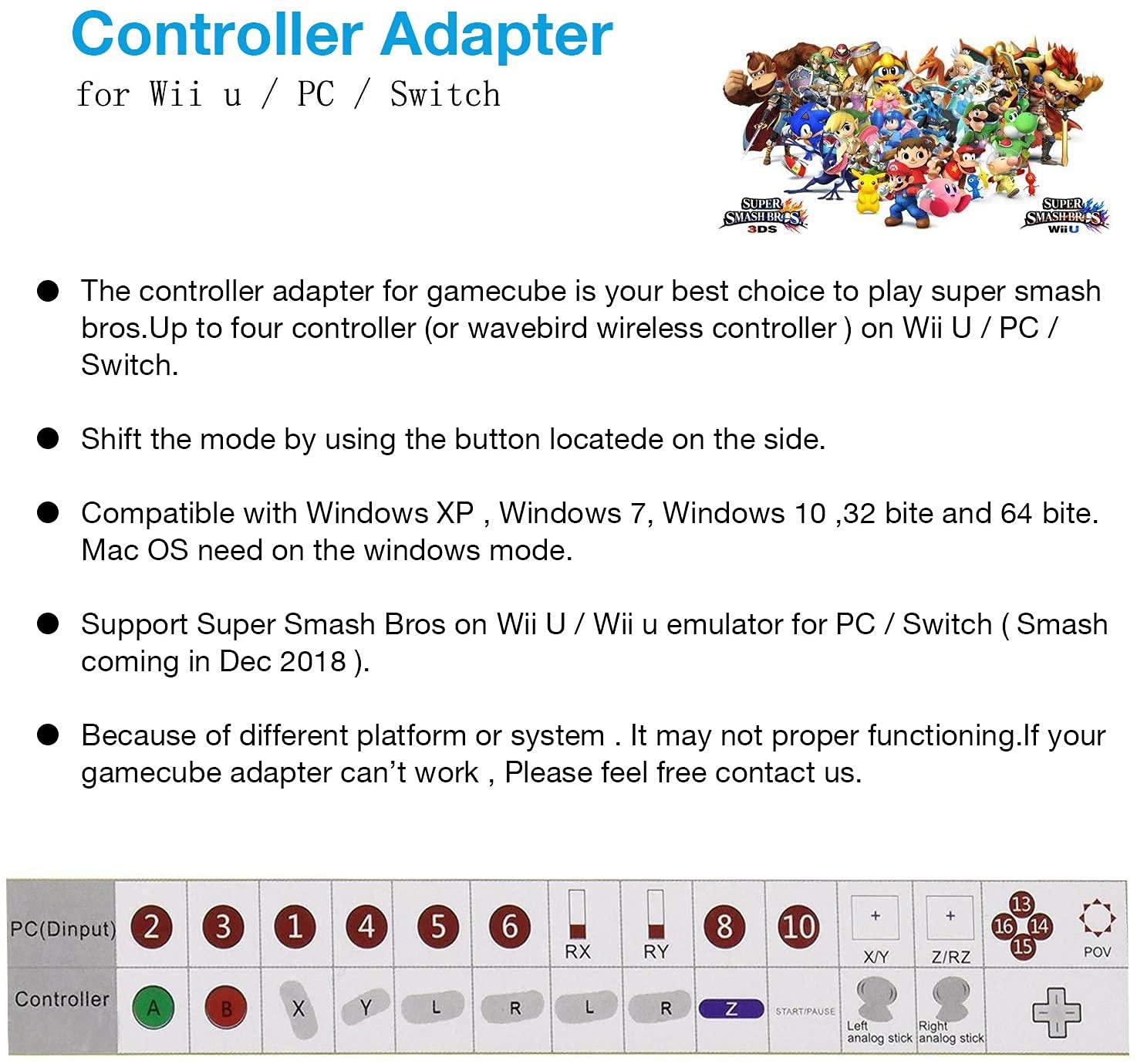
🎯 Level up your Smash game with classic controllers, modern ease!
The Y Team Controller Adapter transforms your vintage GameCube controllers into powerful tools for Nintendo Switch, Wii U, and PC gaming. Featuring four ports for multiplayer action, plug-and-play simplicity with no driver installation, and immersive vibration feedback, it’s the must-have accessory for Smash Bros enthusiasts and retro gaming pros alike.






| ASIN | B07Q459FBQ |
| Best Sellers Rank | #64,851 in Video Games ( See Top 100 in Video Games ) #19 in Wii U Adapters #348 in GameCube Accessories #1,294 in Mac Accessories |
| Brand | Y Team |
| Color | Black |
| Customer Reviews | 4.5 4.5 out of 5 stars (2,119) |
| Date First Available | March 27, 2019 |
| Hardware Platform | Mac, Nintendo switch, wiiu |
| Item Dimensions LxWxH | 1.77 x 3.94 x 4.92 inches |
| Item Weight | 5.3 ounces |
| Item model number | WH-046 |
| Manufacturer | Y Team |
| Product Dimensions | 1.77 x 3.94 x 4.92 inches |
D**.
Best Switch Accessory I Have Bought!
This Gamecube controller adapter allowed me to repurpose my old gamecube controller so now its not sitting in a closet collecting dust (though dust did find a way to stick onto the controller after all these years of being in a box). As the product states this is plug and play all I did was plug the black usb (not the gray one) plugged my gamecube controller and it worked like a charm, I am yet to try it on pc so I don't know how easy it is to set up for pc will update if I do try it. I got it for $10 on sale so I'd say if you got gamecube controllers lying around and have super smash bro's Ultimate I highly recommend getting this I feel this is the way to play Smash.
A**O
Bartcera, Connect & Play.
This is the perfect addition to your gaming collection. You can simply plug into two USB ports and computer or Batocera simply works. Just connect the GameCube controllers and pick the mode on the side. Not made out of any cheap material great cables and durability! The only thing I don’t like is it doesn’t have a P1 or the dots (. ..) to show the port of each, but just esthetics at that point!
B**.
NEED HELP WITH MACOS - Update: support great!
I am using this for my 2015 Macbook Pro. When I boot into bootcamp, it works well, however, in MacOS dolphin, it allows me to input my controllers, but the joysticks are not working. When I go into Super Smash Bros, it straight up has no response. WHY IS THIS HAPPENING???? It says to contact their service, but it DOESNT SAY HOW! I am connecting only the black, both black and gray, and it's on PC. I even tried in Wii U and used dolphin's Wii U mode, and it STILL DOESN'T WORK! Edit: After customer support helped me out and sent me a replacement, everything is all good!
N**G
Great Controller, Dolphin Emulator and Nintendont users READ THIS
So first off, I wanna address what a lot of other folks are saying. A ton of people are saying this thing just plain does not work. That may be the case for the specific units they received, but PLEASE try the steps below before deciding to waste your time and do a return. This adapter works WELL, but it takes some doing for the usecases that I have tested, and the instructions are zero help. Check my video review if you prefer that kinda thing. It's pretty detailed. USING THE ADAPTER ON DOLPHIN EMULATOR So the adapter has a switch on the back with settings for Wii U / Switch Mode, and for PC Mode. You'd think that you need it in PC Mode to use it with Dolphin Emulator on a PC, right? Nope! The version I tested, Dolphin Emulator 5.0-15993 Beta, actually expects it to be in Switch / Wii U Mode, and then the settings changed (in Options -> Controller Settings -> Port 1) to GameCube Adapter for Wii U. For whatever reason, this thing works perfectly fine for software made for interfacing with typical HID controllers (such as AntimicroX), but for Dolphin Emulator 5.0, it wants it in Wii U / Switch Mode. Once you do that, it works flawlessly. USING THE ADAPTER ON WII U WITH NINTENDONT So this is the one that made me almost return the thing. First things first, you need to have the adapter in PC Mode. Again, it's backwards from what you'd think. Next up, Google for the FIX94/Nintendont github repository, open the "controllerconfigs" directory, and grab the file "controller_Generic_GC Controller Adapter.ini". Rename this to "0079_1846.ini" and put it on your Wii U's SDCard at "SD:/controllers/0079_1846.ini". That file is basically how Nintendont knows how to recognize the device, how to map the buttons, etc, and it is NOT included in the controllers.zip either in the repository or when using the "Download controllers.zip" menu option within Nintendont. Once you have the switch set correctly and the ini file in place, plug the adapter in, restart Nintendont (or start it fresh), and launch your game. Works perfectly. Overall, it's money well spent. This adapter is hyper affordable, and a little bit of config time is totally worth it.
K**N
Not for homebrew
I'm giving this five stars only because it does work as advertised, just not for what I need it to. I wanted to use it on my Wii U for homebrew but as far as I can tell the only time this thing ever worked for Wii U was with Smash 4. It works basically as a pro controller for my Switch which is all fine and good for when I need an extra controller, but honestly I don't think this thing ever should have been advertised as "for the Wii U" when it only works with one game. Doesn't even work on the vwii built into the Wii U.
T**L
Work great!
Super easy and quick. Was concerned about others comments on gamecube wavebird wireless controller, no issue at all and room for 4 wireless adaptors/wire cable connections. Fantastic and cheap for effect. Only need black USB cable to make work, grey is optional for rumble features. Was great to play Smash Brothers on the switch with the original gamecube wireless wavebird controller.
D**N
It does work, setup is not intuitive, directions are broken english
Set it up on my laptop with Dolphin emulator and original Gamecube controller. Did require some configuration in Dolphin. The directions are not written in very coherent English. To use for this, you have to set the port to "Standard Controller" and click configure. From there, you want to select "DInput/0/GameCube Controller Adapter" as the device (or 1, 2, or 3 depending on which controller you're setting up. If this option doesn't show up (it didn't for me), click "Refresh" next to it and it should work. You then have to manually assign each button. Save your profile just in case it resets, but when I closed and reopened Dolphin it still remembered my settings so you should only have to ever set this up once. Overall a good value, wish the manual had been written with english words that actually go together.
Trustpilot
3 weeks ago
1 month ago