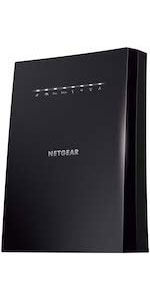
🚀 Power Up Your Wi-Fi, Wherever You Work or Play!
The NETGEAR EX2700 Wi-Fi Range Extender is a compact, wall-plug device that boosts your wireless network coverage up to 800 sq ft and supports up to 10 devices simultaneously. Delivering speeds up to 300 Mbps on the 2.4 GHz band, it features universal compatibility with any router, a wired Ethernet port for direct device connections, and simple WPS setup with robust security protocols. Ideal for professionals and remote workers seeking reliable, extended Wi-Fi coverage without bulky hardware.


| ASIN | B00L0YLRUW |
| Best Sellers Rank | #637 in Repeaters |
| Brand | NETGEAR |
| Built-In Media | Quick start guide, WiFi Mesh Extender (EX6120-100NAS) |
| Color | White |
| Compatible Devices | PC; Mac |
| Connector Type | RJ45 |
| Customer Reviews | 4.0 out of 5 stars 63,457 Reviews |
| Data Transfer Rate | 300 Megabits Per Second |
| Frequency | 2.4 Hz |
| Frequency Band Class | Tri-Band |
| Frequency Bands Supported | 2.4 GHz |
| Global Trade Identification Number | 00606449104899 |
| Item Dimensions D x W x H | 1.34"D x 2.17"W x 2.64"H |
| Item Type Name | WiFi Range Extender - Essentials Edition |
| Item Weight | 0.23 Kilograms |
| Manufacturer | Netgear |
| Mfr Part Number | EX2700-100PAS |
| Model Number | EX2700-100PAS |
| Range | 74.32 meters |
| Special Feature | Wall-plug design, connects up to 10 devices, provides up to 300Mbps performance, universal compatibility, and wired ethernet port for connecting wired devices Special Feature Wall-plug design, connects up to 10 devices, provides up to 300Mbps performance, universal compatibility, and wired ethernet port for connecting wired devices See more |
| Special Features | Wall-plug design, connects up to 10 devices, provides up to 300Mbps performance, universal compatibility, and wired ethernet port for connecting wired devices |
| UPC | 606449104899 |
| Unit Count | 8640.0 Ounce |
| Warranty Description | 1 year warranty |
| Wireless Communication Standard | 802.11n |
| Wireless Compability | 802.11n |
T**S
LOTS of Coverage!
We use these to provide SOLID coverage over the ENTIRETY of our Mountain Top Ranch (about 10 Acres on Top of the "Plateau" where our Home, Recreational Areas, and Upper Pastures are located. We also use them "Daisy-Chained Together" to cover our DEEP Valleys surrounding our Mountain. Each Extender is named "(Our SSID Name)_(Area Of Coverage)".. Example: "Our-Router_West" is the extender that covers the Western Top Part Of Our Ranch. When we "Link" or "Daisy Chain" several of these together to provide WiFi coverage down in the Valleys surrounding our Mountain, We use a format like "Our-Router_West1" ("The FIRST 'Daisy Chained' Western Netgear Extender, Connected to the MAIN Netgear Extender that covers the Western Part of the TOP of our Ranch, Which is Connected Directly to our Home's Router"), "Our-Router_West2" ("The SECOND Netgear Western Extender, which is Daisy-Chain-Connected to the FIRST Western Extender, Which is connected to the Main Western Netgear Extender, Which is connected to our Home's Router" - That's a total of THREE Netgear Extenders, Covering the Western Areas Of Our Property, Up top, and down in the Western Valley) etc. etc... You start losing 'Throughput Speed' FAST when Daisy Chaining these units together, but at least you still have "More than Decent" WiFi Coverage, even (ESPECIALLY) in areas where Cell Coverage can be spotty (Like down in our Steep Valley to our North, Where our Natural Springs run, which is a pretty sheer 600 Foot Drop in Elevation, with only a few hundred feet of Width before Climbing UPWARD again to more of our property.. Cell Coverage down there is 'WISHFUL THINKING' at best, even with a Cell Tower Company Renting some space we don't use to place a Mini-Cell-Tower on our Property, so the Cell Companies can cut STRAIGHT ACROSS this HUGE Bowl of Mountains in the Area we live in, to provide Coverage to SEVERAL State Parks, WITHOUT having to run MULTIPLE towers on the Mountains that Surround us in the distance, 360 degrees.. Imagine a "Pound Cake Bowl"... The Edges of the Bowl would be the Mountains surrounding us in the distance, and the Plateau Sticking up in the center of the Bowl, is where WE live). Our iPhones will use "WiFi" to place calls, when they can't get Cell Coverage, so it works out GREAT for us! Recently, One of our Family Members built a home on land I gave them up here, about 900 "Air Feet" away from our house (So they don't have to see/hear us, and we don't have to see/hear them).. When I bought this mountain, NO Utility Company would TOUCH IT as far as "Providing Lines this far from Their Main Lines", So I had to buy all of the Power/Cable/Water/etc lines myself, and hire Contractors to run them all up here (Buried).. I sized ALL of the Utilities to be able to support 10 homes eventually, as our Children can afford to build up here once they are at a place in life where they can work from home if they wish, Or build a "Vacation Home" up here until they CAN live up here full time... I bought HUGE spools of BIG Fiber-Optic Cable Line from 'Corning', and had contractors run it a LONG way, to the Local Cable Company's Main Lines, that Carry Cable TV/Internet between Counties (Same for Power Lines, etc). So we have a LOT more High Speed Bandwidth than I need, Even working from home... Until our Family Member who just built a home here can afford to connect to our Main Fiber Line to get Cable Internet of their own, I bought Two more of these Netgear units, and Daisy-Chained them together toward their new house, which is East of ours. I Fully expected to need THREE Extenders to run 900 "Air-Feet", But TWO of them (One set in about the middle of one of our Upper Pastures, and the Second Unit Plugged into their Enclosed Screen-Room on their Back Porch) provides them with Decently fast WiFi Internet!!! We DO live WAY OUT in the middle of nowhere, without "Other signals everywhere to shorten the range of the signals WE produce" (for many different things), so YMMV if you live in a Suburb or something, but they work FLAWLESSLY up here for us. ALL of the FIRST "Main" Netgear Extenders are placed outside our home, in a Waterproof (But "Signal Transparent") Enclosure. Those First Extenders are simply used to grab the WiFi Signal from our Main Router inside our house (Going through "THICK Stone Walls" is TOUGH for even THE BEST WiFi Router!) and then "Extend The WiFi Signal Out Across our Property"... We have Four of these, Set North/South/East/West around the outside of our home, each about 50 Feet away from our Home. I've found it's easiest just to set up each unit by going to Netgear's site when you find the extender on your device, creating a login, and then you can change ALL of your Units from a Netgear Book-Mark TO EACH UNIT (You REALLY need to have a separate Netgear Bookmark for EACH extender!). From those bookmarks, You can rename each unit, set it's signal strength, see what's connected to it, AND how good the Signal Strength is, TO AND FROM, each unit, etc. I also found that if you just connect your iPhone (or whatever you may be carrying around) to EACH unit ONCE, let your device store that information, Then choose the option on your device to "Connect Automatically To Known Networks (with better signal strength)", Then we can walk, ride the Horses or ATVs, pretty much anywhere, and our iPhones switch from Extender Unit to Extender Unit without even hesitating! Our Devices connect to the Extenders with better Signal Strength as we travel around outside Seamlessly. We never even know when the device has swapped connections from one extender to another. Normally this is where I'd say, "For the Price These Can't Be Beat'... But I've Paid MUCH MORE for WiFi Extenders that didn't perform HALF as well as these do! "And For The Price", you can scatter them everywhere over large areas. "Tech Tip": Lightly MIST the INSIDE of a clear "Cake Platter" CD/DVD Bulk Storage Dome with WHITE paint (To reflect the Sun's Heat AWAY from the Cake-Platter, and keep UV OFF the Extenders), Run an Outdoor-Rated Extension Cord through a hole in the bottom of the Cake Patter Storage Case (created when you cut the Center Spindle out of the base), Hot-Glue the Extension Cord in Place close to the bottom of the case, AND to close up the Gaps in the Bottom Hole to keep the bugs out, And you have a HIGHLY decent "Outdoor, Weather Resistant, Signal Transparent, WiFi Signal Extender Dome" I simply set up each new unit here in the house, log in to the Netgear Website, Choose which OTHER unit I want the NEW unit to connect to (either our Main Router, OR one of the Extenders out further from the house), and let the NetGear Site set it up for me (Bookmark the Netgear Site Associated with EACH INDIVIDUAL UNIT!).. Then I unplug the unit, take to where I need it, Plug it back in to Power, and it's good to go! Once we allow ALL of our Devices (iPhones, Palm-Tops, etc) to connect to each extender and save it as a "known Network", I turn OFF the "Broadcast SSID" Option, so no one else sees the (Now HUGE) WiFi Network "Publicly" (without Special Software, or a Signal Sniffer, etc).. But even if someone DID happen to somehow get onto our Property, past all of our Security Fences, and Security Systems, and find the WiFi Signal, well, that's what STRONG PASSWORDS, Encryption, And FIREWALLS are for! It can be a pain, but our Main Router is Set-Up to ONLY allow use by "Devices We Specifically Allow". "Guests" are allowed to connect to a "GUEST ACCOUNT", which puts them on a Secondary Network, so if their devices are Compromised, or have a Virus/Worm/etc, it can't propagate through to other devices on our Main Network. And if their devices contain a Keystroke logger, then whoever is reading the Logger's Output only has a Guest Password, WHICH CHANGES EVERY 10 DAYS, and Each Guest has a PERSONAL password that identifies THEM.. We do it that way so that if a Month from now, someone we don't know starts trying to hack into our network using an old Guest Password [Like: "glenn-1s-C00l-0CT"] that was used by a friend that visited recently, we know to contact THAT friend and tell them they've been compromised ("glenn-1s-C00l-0CT", LOOKS like, "Glenn-Is-Cool-Oct", But what it ACTUALLY tells US is "It was "Glenn", "First Part" [1s] "Of October")... But even then Our Router wouldn't even respond to a MAC Address that's not CURRENTLY on the "Guest List" marked as "Allowed", so even someone Spoofing his MAC Address wouldn't work, since his Guest Access was COMPLETELY deleted the day he left. Probably 10 Times More than you Wanted to know, But nowadays Security Risks are VERY REAL, VERY possible, and that's even MORE of a Concern When you have WiFi COMPLETELY Covering Tens Of Acres. These are VERY useful Items!
N**N
This Is the Way That Networking Should Be
I do not consider myself an expert on home/small-office networking but I've done a lot of it and in my experience it is something of a black art... quite consistently the most mystifying and frustrating aspect of the information age. I have used a number of range extenders, bridges, etc, over the years including Belkin and various forms of dd-wrt. This is by far the best experience I've had. I bought it about 6 months ago for a project I wound up not using it for. It was inexpensive enough that I held on to it because I knew it would come in handy. As the weather (finally!) is getting nicer, the fact that our back-yard wifi coverage is poor was keeping us indoors more than we wanted, so I set it up this morning. I will spend more time writing this review than doing the setup. I followed the instructions which I think were just fine, used the WPS button (which I had previously thought of as being something for wimps) and the thing set itself right up. For those of you who expect every technological thing to be instant, it takes some patience for the thing to boot up (power light to go from amber to green) and to connect, like a minute or two. I wanted to change the SSID from myssid_EXT to something a bit prettier, but this is in no way necessary. Again following the instructions, I logged into the extender's settings page using my browser. I saw that there was a firmer update available which I installed, and I think it was a good idea because I think it was mostly a GUI update for the settings page. The GUI is now simple, intuitive, and attractive... quite unusual for networking boxes, in my experience. To pick one example, when I changed the SSID, rather than simply disconnecting me and letting me guess that I have to reconnect to the new SSID, it took me to a page explaining that, with a button to press once I had reconnected. All of this in unbroken English, again a rarity for inexpensive networking devices. So I can't promise this great for folks with less experience, but I think that it is likely. I have a New England wood-frame house built in 1900. These are often the worst for networking, I'm told. My router is on the 2nd floor at the front of the house. I put the extender in the back of the house, on the first floor, maybe feet away. Once it booted up, the "Router" light was green, indicating a strong connection. I connected to the extender from the front of the house on the 1st floor, maybe 40 feet from the extender. The speedtest.net figures through the extender were 23/26 Mbps (down/up), compared to 30/27 connecting directly to the router, which is upstairs from here, maybe 25 feet away. I did notice that the "Device" light is amber from here, not solid green so the wifi connection between my laptop and the extender is apparently not optimal but obviously the performance is good. Finally, I went to the back yard. At 50-60 feet from the extender, the speedtest results were 10/5, so there is some significant dropoff. In terms of physical design it is compact and light, but does not feel flimsy, and it fits perfectly in a two-plug socket, as pictured. I am also happy to see that this seems to be in a series with their AC range extenders, suggesting that they will be continuing to maintain the software, which I was glad to see... not always the case when the next generation of networking arrives. All in all, a great unit at a great price, I am very happy with this purchase and highly recommend it. Edit: 3 years later and still going strong! I recently repurposed it to my small office. Reset, restart, reconfigure, and it's working like a charm. I wish all equipment were this easy, reliable, and well-designed.
M**K
Gets the job done, but can be spotty
I purchased this because I needed a better wifi connection in my apartment. I live in a basement apartment of an old house, and I was sharing the wifi router with a tenant on the second floor. The router was on the first floor (between both of us), and it just wouldn't reach to all parts of my basement and was slow most of the time, or would drop out completely (particularly on my phone). I purchased this extender to boost my signal. In short, this extender works, and I have better wifi down here, (most notably on my phone) and it reaches to all areas. I placed it in my bathroom, where it gets a "green" signal, indicating it has a good connection to the router upstairs. The set-up was really easy for me, a reasonably tech-savvy 20 something female. I did the WPS set-up and had to try twice, but all you do is push like two buttons and wait, and it worked. BUT that isn't to say there aren't some drawbacks. . . I DO find that my devices are slower across the board, just by having brought the extender down here and connected some devices to it. It is also slower according to the number of devices connected to it. If I have my laptop and my phone connected, my netflix is slow. Or if I'm watching netflix and then pull out my laptop, it won't load webpages (or does it slowly). This is usually worse at night, and it might just be our main internet we are drawing from isn't the best, but that has been my experience. I have to limit what devices are connected all at the same time. Also, I have experienced it totally dropping my connection. One minute it works, the next minute it won't (but it still shows 5 full bars). That has happened on my phone a few times, where a webpage will just automatically not load or stop loading. And things will be really slow. Then, it will just work like normal again after a few minutes. Overall, I would still recommend this product, and at the end of the day, it was $30 once, as opposed to $30 each month to have to pay for my own internet. I think dealing with those annoyances mentioned are worth the savings because it has never REALLY hindered my ability to use the internet in my home, stream video, etc.
J**O
Fine as long as MAC addresses are not important to you
Your real score may depend on whether you use MAC filtering or not; this thing does not support MAC filtering. As with most wifi devices, this thing comes with the MAC address printed on the device itself, and as you may have guessed by now, this thing works similar as a tethering service, in which for example, you convert your cell phone into a hot spot by receiving the cell signal, and linking other devices via wifi. This thing connects to the hotspot as any other device; then it creates its own hotspot with its own name, which can be reached by other devices. For the devices that use the extended network, the original hotspot does not matter, because they only have to be in reach of the hotspot of the extender and connect as they do with any other hotspot. This means the extender takes the connection of other devices, and passes it to the original hotspot, connecting to it as would any other device, using its own MAC (not the MAC of the other devices) Since the MAC was listed in the device, I included it in the filter list of the original router, and in theory it should work as any other device that was already in the list. It is a long list, with devices that can connect with no problem, so if there was a problem, it should not be related to the router. The quick start guide mentions some things about MAC filtering and stuff, but it mentions some things like 'virtual MACs' and conversion lists like a proxy, which does not make sense for this. Also, since it could not connect to the router, it displayed a page in the device listing its own MAC, which is the same printed on the device, and which I verified many times for typos. So the correct MAC is in the list, yet it does not connect. There is a light that appears green when connected to the router or the base hotspot. This light was off all the time till I turned off the MAC filters in the router; then immediately it would turn on. I turned MAC filters on and off many times to verify this, and yes, when the filters where turned off, the extender would connect to the router, and when they were on, it would not connect. It should not be any different than any other device connecting to the router, with its MAC on the list. If you want to use MAC filters you won't be able to use this device, because it will not be able to connect to the base hotspot. Another thing; this thing can only extend the range for only one device at a time. You can not create an open network in the other side of your house and expect to connect many devices there; if you try to connect more than one device, it will let you know that there is already one device connected and if you connect now, it will end the session of the first device. On a positive side, making MAC filters aside, it works, and does its work well. Sometimes a device will connect to the extender instead of the original hotspot when you would think it should receive better the signal of the base hotspot; and if you don't mess with MACs, the setup is simple enough --- update: had to reset because I changed the entry hotspot, so this thing does not connect to the original spot anymore. The plan was to reset the device and run the setup procedure again, but after placing a paperclip in the reset hole a few times, and watching the lights blink, instead of the default network name and password it still appeared the network name of the previous setup, as if the thing did not reset. Finally it went back to factory defaults, but not immediately but after a few hours; still there was no documentation about it and if you want support after 90 days of purchase you have to pay for it; not the best situation cross your fingers you don't have to change the setup in a hurry
J**T
Extends a wifi network well, easy setup, streams video and music, can share a printer over network
So far so good with this extender. I am using this as an extender and not a wireless access point, fyi. The wireless router in my home is too far away from certain areas of the home to provide a good connection and this solves that problem well. The extender is connected to the router at 144 mbps, the max for the router. The range on the extender is very good. It serves an area of about a two bedroom apartment and to outside (patio) portions of that as well. My devices connect at 144 mps to the extender. Using seedtest.net my upload and download speeds are slightly less that when directly connected to the router itself but this is to be expected since this adds one more link in a chain of connections. In other words, connection speeds to the internet when connected to the extender are still comparable to to the speeds when directly connected to the router. I can do fast uploads and downloads of files, stream music, stream video, and stream high definition video at 1080p to my smart TV when connected to the extender. This brings this portion of my home back to the electronic age. Setup time is not bad. I connected this to my wireless router using the extender's internal software. It is also possible to do it using WPS (when you push a button on your router and then on the extender and let them connect to each other) but using the software gives me a bit more control of how it is setup. You need to wait about two minutes for this to fully boot. Be patient. Then you need to connect to the wifi signal that the extender transmits (not that your router transmits). The name of the extender's network (SSID) at first setup will be "NETGEAR_EXT." Then open your web browser (phone, tablet, or computer) to "www.mywifiext.net" After that the webpage will lead you through the setup process. Basicaly it involves chosing the wifi network you want to extend, connecting to it, then naming the wifi network that the extender will be transmitting. Then reconnect your device to the newly named extender network. You may need to experiment with placement of the extender in order to get the best connection to the router network you wish to extend. If you have a good connection between the router and the extender (indicted by a green light on the left side of the extender), this works quite well. If you do not have a good connection between the router and extender (an amber light or a red light), then the experience will be frustrating. I have actually been able to place this in an outlet behind a piece of furniture so it is completely hidden. Depending on the environment and the type of furniture etc, this may not be possible for everyone. An oddity with this: while connected to the extender network I am unable to use remote desktop connection (Windows 7 OS) to connect remotely to a PC by name. It does connect using the IP address of the PC however. Also, FYI, I am able to share a printer connected to a PC using Windows 7 printer sharing. The PC sharing the computer and the the other devices connecting to the shared resource are all on the extender's network. It is nice to be able to just print something while sitting on the patio with my laptop. Hope this info helps y'all.
L**S
Great once you get it up and running.
Love how it works, but it gets 4 stars for a complicated set up. That is, it's very complicated for those using WEP Encryption. The WPS set up sounds MUCH easier. The trick is, when using the web browser set up, you must connect the computer to the NETGEAR_EXT SSID and ONLY that SSID. If you are still connect in anyway at all to another network you will not be able to access the necessary webpage. You will get an error about the page not existing. The easiest way to do this is to connect the Extender to the router via an ethernet cable. and remove any other ethernet cables connected to the router. Then disconnect from any WiFi networks and make sure they aren't checked to automatically connect again or else it will interrupt the process. Then follow the set up instructions as outlined in the installation manual. When you've reached the final step it will prompt you to connect any devices to the new extension (don't worry you don't actually have to connect every single device you will ever sign in with, one works just fine). When you hit continue, it may seem like it didn't work. You will likely get an error page about lost internet connection or an unavailable web page. At this point you may connect to your regular network again. Likewise you should be able to connect any device to the network extension exactly as you would with any other network. The setup was very frustrating to figure out on my own, but I was extremely pleased to find that the WiFi signal in my room that used to fluctuate between 7-13% signal strength max is now 100%. The signal from the little antennae doesn't go through walls very well but it gets the job done. Side note: I have seen two of these on Amazon for different prices although sold by the same provider? Not even a different model, the exact same one. One is priced at about $40 and the other $70. It's definitely worth the $40, but I don't think I'd pay $70. Try to find the lower one if you can. (This is obviously subject to change but as of October 2014 that is the case). EDIT: I've had this for less than a year and run into some serious problems. When our actual router needed a factory reset, well this needed one two in order to connect to the new configuration. Well, setting it up again proved to be next to impossible. After executing the factory reset as instructed, the device would not stay powered on and connected for more than 5 seconds or so. It keeps rebooting. If I hadn't checked, double checked, and triple check, I would think that the reset button got stuck, but that isn't the case. If I just plug it in and leave it alone for a while it will stay on, but as soon as I attempt to connect to the main desktop to initiate setup, it lasts almost exactly 5 seconds every time and then reboots. And the so called "support" offers nothing more than a pdf version of the manual.
I**S
Works Perfect, Improves Wifi Reception And Setup Works With Mac OS
NetGear Range Extender. I have the older iMac G5 with snow leopard. - I have Comcast as my ISP and that means that there is sometimes lagging and intermittent internet connection, especially in the evenings and weekends when everyone comes home from work/school and is surfing the net. However, we were experiencing bad internet connection even during 'non-peak' hours. In fact, we had to call Comcast due to poor internet connection which led to poor and sometimes non-existent wifi reception and we thought that the problem was the modem. The Comcast technician worked on some connectors down in the basement and after he was done changing some of them, this improved the wifi reception in the house. If you have this problem, call Comcast before switching the modem/router and have them test their cable wires and/or connectors as this might be a problem. - without the extender, I would get two bars or even 1 bar out of three on my computer and smartphone. The package comes with instructions. Initially, insert it into an electrical outlet close to the original router and once it powers and senses the original router, use a computer to log onto the Netgear website and set up the extender. I have read reviews saying that using a Mac OS led to problems in the setup of the extender but I didn't have a problem. Maybe they have improved the setup for Macs. - during the setup, it uses your existing wifi network and 'extends' it, thus the name of your 'new' wifi network shall have an 'ext' next to it. - you can choose to have the same password for both the wifi of the original base router and the wifi of the extender. I chose to have a different password. -Once you have registered the extender and prove that it is working, unplug it from the initial outlet close to the original base router and move it to the location where you want to improve wifi reception. Plug it in an outlet and then go ahead and use it. - The house I live in has a basement, ground floor and upstairs, so the poor wifi reception was baffling to say the least. After installing the wifi extender, the wifi reception definitely improved after I got the extender. In places where I was getting 2 bars, I now get three full bars in the basement and upstairs bedrooms. Download speeds are faster and there is very little lag in wifi reception. Watching TV and Netflix via the Internet is remarkably better than it was before. - sometimes, the extender shall refuse to work despite the presence of the 3 bars. I usually switch back to the wifi of the original base router and then back and this usually fixes the problem. When the extender and base router wifi refuses to work, then obviously the problem is with the ISP. This is usually the case with Comcast and I have learned to accept that, sometimes, Comcast shall have lousy internet reception and this has nothing to do with the extender, or even base router.
N**4
Solved my problem of Internet dropping out
If your 2022 Chevrolet Trax is leaking oil, it could be coming from a few common areas. Here’s a breakdown of where oil leaks typically occur: 1. Oil Filter If the oil filter isn’t properly installed or the gasket is damaged, oil can leak from here. Make sure the oil filter is tight and the rubber seal is intact. 2. Oil Drain Plug The oil drain plug is often a common culprit. If it’s not tightened correctly or the washer has worn out, it can cause a slow oil leak. 3. Valve Cover Gasket If the valve cover gasket is worn, cracked, or improperly sealed, it can lead to oil leaking onto the engine. This could be visible around the top of the engine. 4. Oil Pan Gasket A worn or damaged oil pan gasket can leak oil from the bottom of the engine. This is usually more noticeable if you're parked for an extended period. 5. Timing Chain Cover The timing chain cover is another potential area for leaks, especially if it’s damaged or the seal around it fails. This is typically a more labor-intensive repair. 6. Front or Rear Main Seal The main seals (front or rear) can wear out over time and cause oil to leak from the crankshaft area. Leaks from these areas are typically more serious and can cause larger oil loss. 7. PCV Valve or Hose A clogged PCV (Positive Crankcase Ventilation) valve or hose can sometimes cause oil to seep out of various engine parts. This is less common but still something to check. 8. Oil Cooler Lines If your Trax has an oil cooler, the lines that feed it can sometimes develop leaks. These are usually located near the front of the engine or under the car. 9. Oil Pressure Switch/Sensor If the oil pressure switch or sensor fails, it can leak oil. This might be a small drip but is often visible when you look under the vehicle. If you're unsure, you can start by checking the area around the oil filter and drain plug, as these are the most common spots. For anything deeper like the main seals or timing cover, it’s a good idea to take the vehicle to a mechanic for a more thorough inspection. Have you noticed the leak happening after a certain drive or is it consistent? Ask ChatGPT By messaging ChatGPT, you agree to our Terms and have read our Privacy Policy. Don't share sensitive info. Chats may be reviewed and used to train our models. Learn more Attach Search Works great for me -- 2 rooms away from router. Before using it, the internet was dropping out regularly.
M**A
سيئ جدا
لا فائدة منه كأنه لايعمل
A**D
great range, solid build quality, easy led indicators, easy setup
Solid build quality. Setup was very easy. For some reason the laptop i connected to set it up wont load the configuration page of the router. However, it was displayed instantaneously on my mobile. So i completed the setup on my mobile! It was very easy and just goes through the wizard in three or four steps. It has two LEDs, one which shows if signal to your main router is very weak (red) and green if its ok. Another is to show if any devices are connected to it (green). Initially i performed the setup very close to the main router, then i moved it to my intended location and found the signal was too weak (red led) and hence had to tweak the location. I finally placed it at a location where i was getting two bars of signal from the main router and it was good to go! The range is very good too! I get four bars of signal even through three concrete walls! This one has better range than older belkin router i use as my mains.
R**L
Bueno bonito y barato
Me parece muy funciona, útil y fácil de configurar. Tiene buena cobertura, Para una casa de 100 m^2 con el módem que trae el carrier y ese repetidor ya tengo alcance sin problemas en toda la casa.
D**0
Excelente producto a bajo costo. Cumple su propósito.
El paquete llegó mucho antes de lo estimado, por DHL. Cumple su propósito de repetir y ampliar la señal de una excelente manera. Fácil configuración y no ha fallado para nada. Una semana de uso. Lo recomiendo ampliamente, si quieres ir a la segura compra este producto, estaba indeciso entre éste modelo (N300) y el AC750, pero realmente con este es mas que suficiente. Lo compré en $628.42, pero después ví que el precio cambió por debajo de los $400... Les recomiendo que estén pendientes en la variación del precio.
S**A
Perfect. Easy to Set up. Gets the job done.
Gets The job done. I am using Apple Airport Express as primary router. I guess its getting old and I see a drop in the signal strength in my study/work room. I was looking for a range extender at an affordable price. I came across this device. Its fairly easy to setup (took me 10 minutes). Significantly improved the Wi-Fi signal strength. I am on ACT 100 mbps connection. However my apple router is only giving around 50mbps on an average. The range extender is getting me around 30mbps which is more than enough( I was getting 3-4 mbps earlier without the extender). Overall I am satisfied with the product. Gets the job done. (I could have ordered a higher version to support 5ghz as its only delivers 2.5ghz band. 2.5ghz is the most common and congested as we have probably 20-25 devices at home operating in this bandwidth). Bottom line - Huge Thumbs up!
Trustpilot
2 weeks ago
2 weeks ago