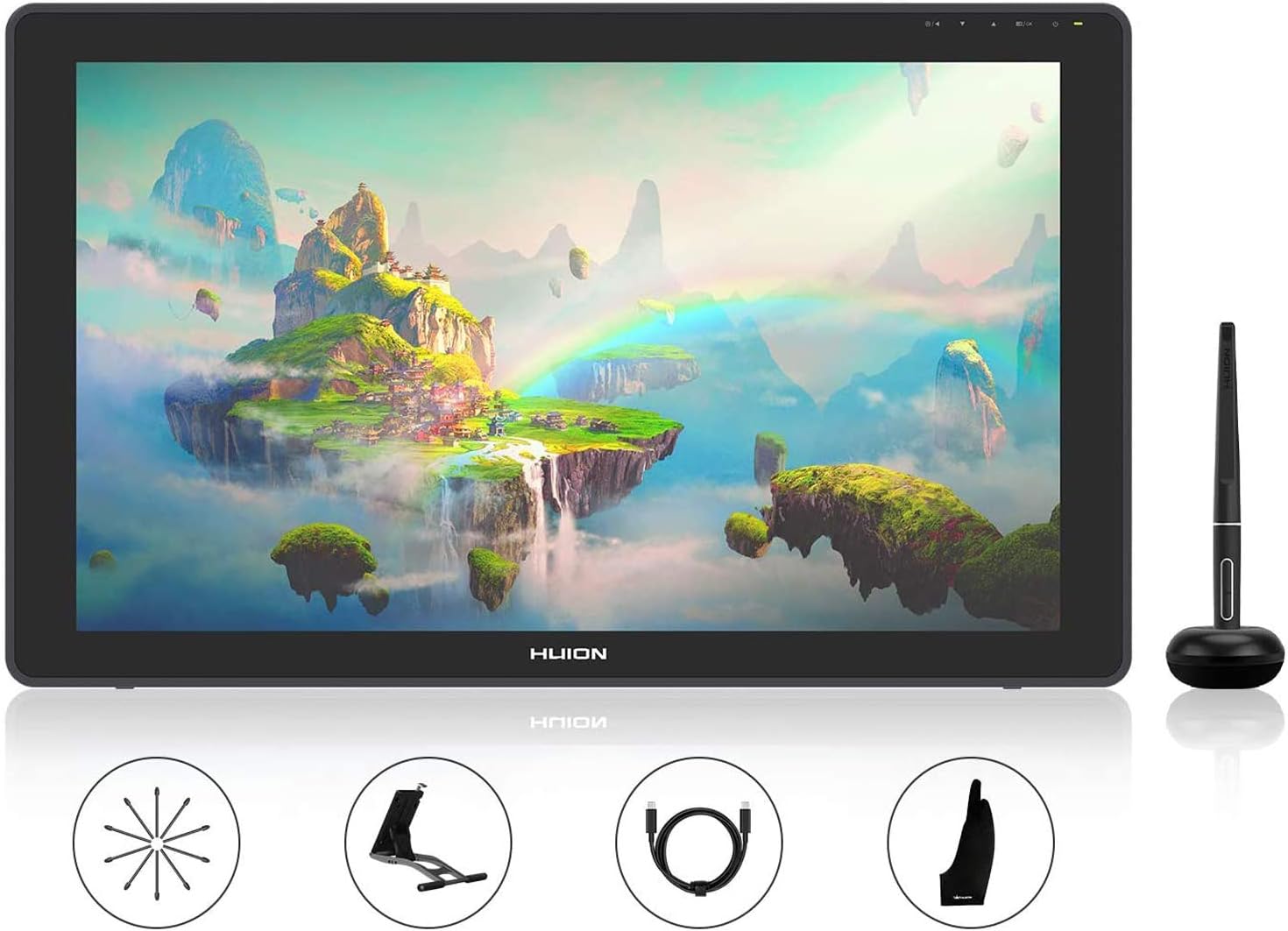
🖌️ Elevate your creativity with precision and color that commands attention!
The HUION KAMVAS 22 Plus is a 21.5-inch full-laminated drawing tablet featuring advanced Quantum-dot technology with 140% sRGB color gamut and 1200:1 contrast ratio. It offers a fully laminated anti-glare IPS screen for reduced parallax and enhanced accuracy, paired with the PW517 pen supporting ±60° tilt and smooth, lag-free input. Dual USB-C ports provide versatile connectivity to Windows, MacOS, and Android devices, making it ideal for professionals working from home or distance learning.


| ASIN | B0897KN196 |
| Best Sellers Rank | 10,131 in Computers & Accessories ( See Top 100 in Computers & Accessories ) 27 in Graphic Tablets |
| Guaranteed software updates until | unknown |
| Item model number | LPEU-GS2202-EU+UK |
| Manufacturer | HUION |
| Product Dimensions | 54.6 x 54.6 x 0.1 cm; 3.44 kg |
G**L
Great for young enthusiasts
Excellent very impressive
M**W
Not 2K, but a nice comfortable size and tracks acurately
I went back and forth between buying a small tablet with a finer resolution and a large tablet with more 'room' for app panels etc. Went for this in the end. 'only' 1080p, so you will notice some visible pixels to begin with (especially if you are used to working on 2k/4k computer monitors), but honestly after a while you don't really notice and the trade off is you do have a more comfortable workspace with plenty of room for your brush and color panels etc inside your app of choice. Screen is bonded for more accurate pen tracking than the equivalently priced XPen display tablets (for instance) honestly it's hardly noticeable, it's so spot on to the tip of the pen. The screen also has a semi matt finish for a (slightly) less slippery, more papery feel. I still find the sensation of hard plastic pen nip againsts glass unnatural however, so i bought a set of Huion replacement felt nips for the pen which makes it so much better (in my opinion). The bundled power/display cables give plently of connection options, but I do wish it could either be powered and povide display through a single Thunderbolt connection with a single USBc lead or at least be able to use a standard USBc cable each for power and display, rather than the messy and awkward 'hydra' cable that comes with USBc at one end and all 3 of USBc/5mm Power/HDMI on the other. But... All said still a round great budget display tablet.
D**N
PLEASE READ FOR EVERYONE AND BLACK SCREEN SUFFERERS
Pictured above I have the HDMI cable from the all in one cable plugged into the back of my pc and the regular USB power cable plugged into a USB port in the back also. I have not plugged in the red power cable because the USB cable can take enough power from my pc to give to the tablet to use on its own so it will work. These cables are connected to the other longer cable on the othee end of the coupler which is connected to my Huinon tablet as above. I've also included a breakdown of the pen in a video above too. On my drawing software (Krita) one of the pen buttons can toggle the brush/rubber on and off and the other brings up an advanced colour palette. The results in some other software may vary. Disclaimer: I am not an expert with this product but I do know the following: *You need a PC or laptop to use this tablet mainly but you can connect it to other devices like a phone and it can work that way as a second screen, working on something that has already been saved to the cloud for e.g and can be accessed from your phone to work on with the tablet it is connected to. (Using a USB-C cable I presume) You also need to install the newest version of the software that works with the tablet to maintain it and allow it to be used with your digital drawing software. (If you don't know which one is the most recent one, you can check the update details for the version on the Huinon website after searching for whatever tablet version you have and what software you need, (and it will tell you what it's added or fixed since the last patch and you should be able to identify it from there) or download the manual if you've lost the set up instructions, or the Huinon official software for the tablet to use it properly and calibrate the pen or pressure level sensitivity in the pen). - Or you can just do what I did the first time and install all the versions and let your computer tell you that you've got the old version and it needs to be uninstalled before you install the newest one. You also must not have any other existing drawing tablet software (the software program for configuring the tablet settings, not the software you use for drawing). When using a PC or laptop if the tablet screen isn't duplicating like it should, make sure you set the screen settings to "Extend" or "Duplicate". (This can be done by pressing the Windows key + P for project settings which is how you can set up a double monitor with a connected device on a Windows PC) If the methods below aren't working for you then it's probably the result of a broken wire during transit or somehow the leads have been inserted to the incorrect ports or simply aren't inserted in enough (like they are hanging out and aren't properly connected into the port). When it works the tablet is great and the nibs bearly wear down, so you won't catch yourself paying the ludicrous £15 for more replacement nibs for that new fancy wacom tablet you're eyeing after using the pen for 0.5 seconds. This was the main reason I went for this tablet from a brand I'd never heard of because A) it had a good size, buttons were handy and other users had said the pen/nib quality was great + I lack the hand-eye coordination for a screenless tablet for digital art and B) I believe a german reviewer compared their pen from a decade's worth of use with older version of the more modern wacom tablets and it was still usable, but the new pen nibs she got with the overpriced new tablet lasted all of two hours. Ridiculous. There is one big issue with the Kamvas 13 tablet which is the fact that it has a black screen - no connection issue when trying to set it up for the first time. (Right out of the box) - Black screen issue - The instructions aren't clear when it comes to setting it up at all. I nearly threw mine out when I got the black screen issue that this tablet is infamous for apprently. (You plug in the cables whichever way from the tablet to your device and you turn the screen on with the button and the power button on the tablet stays red after a second of the huinon logo showing up on screen and then it says no connection and goes into power saving mode and the tablet stays off.) After a day of being depressed because the highlight of my week was ruined and i thought the tablet was broken or I was missing leads or something to make it work - and a frustrating amount of research and YouTube review videos watched later, I discovered the two awkward ways the tablet should be set up. - and I've written them here for any poor souls that encounter the same issue. Methods of setting it up (2 ways): - All in one cable set up - What it is: This cable as a short red USB power cable, a short HDMI cable and the longer USB-C cable that goes into the tablet at the top port on the right. (doesn't matter if it's in with the lead pointing up or down the ways) How: You can connect the all in one cable on its own from the tablet to your device (bendy bit with the curvey end goes into the top right side port of the tablet and the middle wire goes to the hdmi port) without connecting the red power usb lead to one of your device's usb ports if your laptop or PC has enough power output to power the tablet when it's turned on. (Taken from the other leads going from the tablet into the pc or laptop) Otherwise if it's still not functioning it needs more power to work. You'll need to connect the extended version of the power lead (longer red power lead that comes with the tablet) to the smaller lead on the all in one cable and connect the longer part of the whole (now extended with the short lead + longer version of the lead) cable into a usb compatible plug and plug it into any normal outlet or socket. - All in one USB-C set up - What it is: This is actually the most painless way of setting up the tablet (but of course you're only told this AFTER you look at any YouTube review of the tablet or at the bottom of the set up instructions, telling you the cable can be bought seperately along with the USB plug. (you might need if your laptop or PC can't power the tablet in its own even with the short power lead connected via a USB port on the side of your device) It works first try for the reviewer setting up the tablet that way) as it literally just involves you buying the double ended USB-C to USB-C cable from the Huinon store (available on it's Amazon version which is accessible from the store link at the top of this product page near the tablet product description) for a brisk £20 ~ £25 (on the Huinon Amazon store) or £35 on the Huinon website store, but it only delivers to the US so be careful if you're in the UK and want to order it that way. You are recommended to only order the Huinon double ended USB-C cable so that it will be guaranteed to work wih the tablet instead of the wire being faulty or incompatible with the tablet. How: Literally just plug the USB-C double ended cable from the bottom port on the right side of the tablet straight into a USB-C compatible port on your laptop or PC. I'm pretty sure this lead is also used to connect/link the tablet to be used on more obscure devices like a phone etc. With the drawing you have been working on already saved to be opened on your drawing software and worked on with the tablet. However, it depends on your interface prefence and what device you use your drawing software on mainly. I use Krita on an Alienware Aurora R7 PC, so setting it up was fine once I found out how to and discovered where the HDMI ports were on the back of the PC block even though I spent a day looking for them and were convinced they didn't exist. - when they were really just disguised by the fact that they were right above the vents and weren't labelled at all with nothing as much as a symbol or anything like the trident looking ones you see above any standard USB port. Thank you for reading and I hope you get your tablet working. If you still need help with the black screen issue the Huinon support page for the Kamvas 13 is here: https://huion.uk/pages/support The troubleshooting video I watched for the methods I described to tackle the issue is here: https://youtu.be/fbOLXnnJH4M & The most useful reviewer video I watched is here using the USB-C cable method straight out of the box: https://youtu.be/Aho48V75gmo Happy drawing!
A**X
My experience
Got this about 2 months ago, my experience so far has been flawless. It's plastic but it doesn't feel cheap, the pen's a bit lighter than my liking bit that's because i used a wacom cintiq 13HD before (seen in the picture as a comparison). The screen is fully colour customisable, very accurate and vibrant colours btw. I haven't had a single problem with it, downloading the driver and setting it up was 10 minutes at most. The stand is fully adjustable and is a piece of cake to handle. Overall worth the price, I would go as far as saying the quality is very similar to wacom's. Littl I warning tho, this tablet is HUGE. I didn't expect it to be so big but its a beast.
M**D
good display .
Excellent display not too heavy or cumbesome, good stand but a little tricky to set up as usb c cable a nut short. Seems a solid reliable build.
A**R
Seems to be a good product but to my surprise the drivers require admin access to run always. I wanted to use this as an add on to a corporate laptop but this is not suitable for this environment. I've returned the product.
A**E
Also ich bin sehr zufrieden mit diesem pad. Ich war schon total gehypt als es bei mir ankam, als ich es öffnete war die freute noch größer. Ich habe schon ein pad aber ohne Display und war total begeistert dieses nun mit Display zu haben, es ist ein ganz anderes Zeichen Gefühl. Das Display ist nicht glatt es fühlt sich wie ein hochwertiges Blatt an, der Stift ist super fühlt sich wie ein weicher Bleistift an und hat einen gummimantel an der Stift Führung, meiner Meinung nach. Die Helligkeit ist super, da ich immer abends im dunklen zeichne ist es perfekt, ich finde nicht das es die Augen reizt so wie man das kennt vom zb handy. Es spiegelt nicht und ich zeichne relativ schnell wenn ich einmal drin bin und habe da überhaupt keine probleme. Das 3 in 1 Kabel funktioniert gut hab es mit meinem PC angeschlossen. Beim Treiber hatte ich erst Probleme hab dann aber die ältere Variante 14 statt 15 installiert und es ging damit super, bei mehreren Monitoren muss man um präzise zu zeichnen (damit der Stift passt) den Monitor ausmachen. Bei meinem Programm Clip Studio Pro musste ich das noch einstellen und es klappt super. Bin echt zufrieden und kann es nur empfehlen, jeder der gerne auf Papier zeichnet so wie ich wird damit sicher gut umgehen können und die Vorteile eines Displays genießen. Für Anfänger top. Laptop, Handy und switch werde ich noch ausprobieren. Beim streamen (bei twitch über streamlaps Obs) muss mal alles vorher anmachen und dann das pad, alles rüber ziehen und Monitor aus
C**N
Article apprécié par ma fille qui fait une formation d'illustratrice + graphiste, bonne taille de l'écran, pas trop grand
V**R
I’ve used Wacom for more than 10 years so this is my first Huion, but I am really impressed with the first impressions. Amazing quality for this price level. I am using it for digital painting and it was just plug and play more or less and the screen itself feels stable and reliable.
T**L
I had a smaller 20 inch Huion display tablet which served me for 8 years and never had any problems with it, so I decided to buy Huion tablet again. I bought 24 inch version as I needed more working space and I come from traditional background so for me the bigger is better. All I can say, damn, this one is a beast. Setup was easy, no problem with drivers, pen is very nice, minimal latency. Drawing experience is excellent, had no problem working in Photoshop, Blender, Substance Painter, etc.. One remark that I have is anti glare matte film, which is a little bit grainy, but I got used to it really fast (never used matte film on anything, so I don't know if it's supposed to be that way). Display needed a little bit of color calibration, but nothing that can't be solved easily. The only BIG complaint I have is not about display, but about Amazon packaging. I chose Amazon packaging option at checkout, as I trust delivery services as far as I can throw them (didn't want them to see what's being delivered). Amazon put the display in the biggest box they could find, fragile sticker not a mile in sight, and they've put just some paper in the box to "protect" display from moving around. Of course box came all beat up, half opened and I've thought this is it, tablet is gone. But as I've opened the Amazon box i thanked God and Huion as display was super tightly secured in its original box. So lesson learned, don't click delivery in Amazon box for fragile stuff as product will not come securely packaged and save yourself from a panic attack or two.
Trustpilot
3 weeks ago
1 month ago